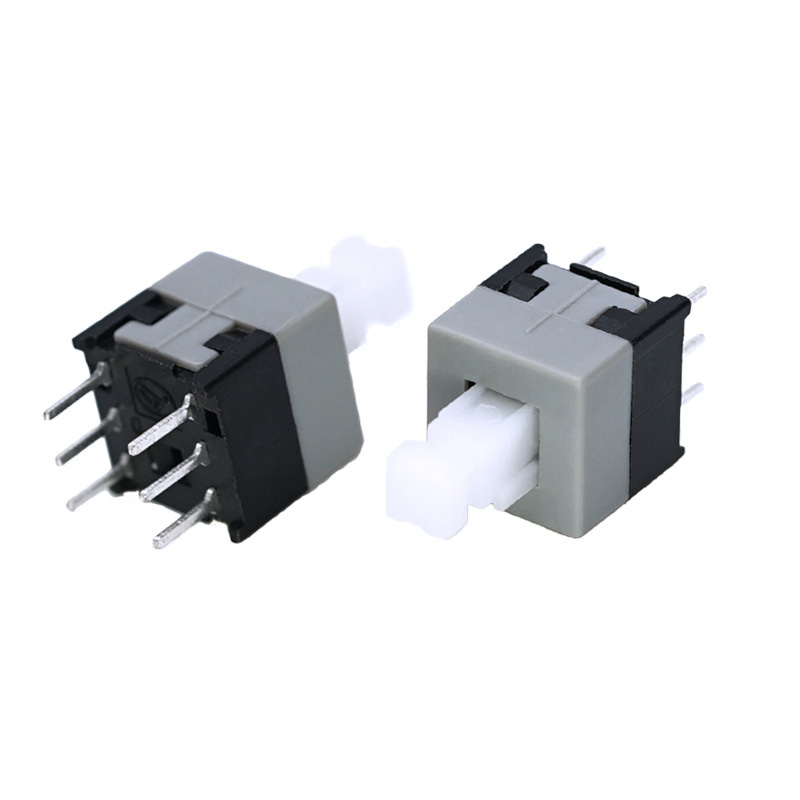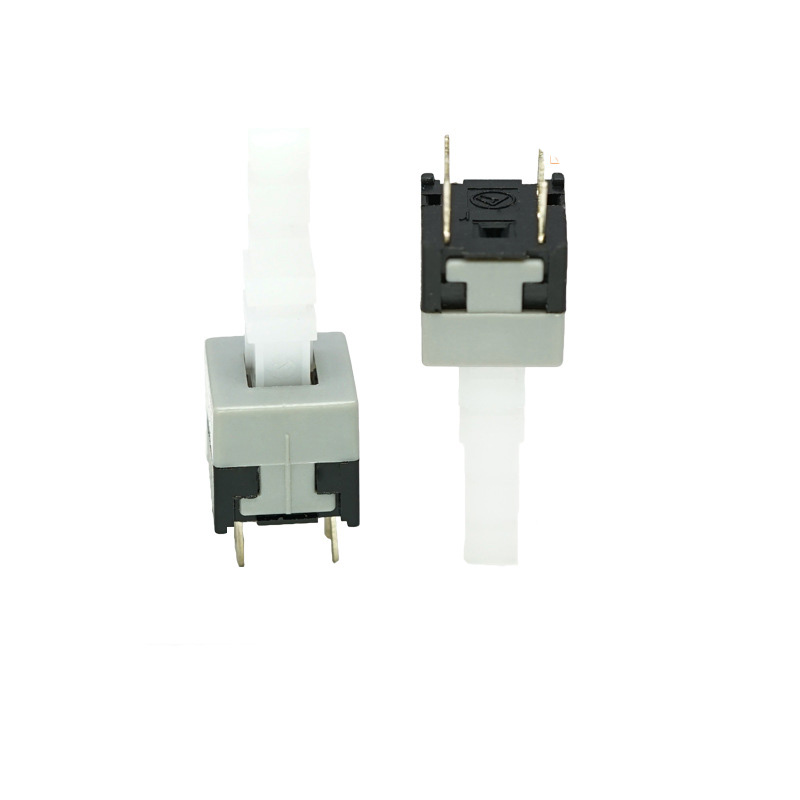
Self-Locking Switch

  • 6 pins 8.5mm push button switch Computer Case Power Button​​ switch

    Product name: Push Button Switch/ self locking switch

    Operation Type: Momentary type /Latching type

    Rating: DC 30V 0.1A

    voltage: 12V or 3V, 5V, 24V, 110V, 220V

    Contact Configuration: 1NO1NC

    Computer Case Power Button​​

    ​​1. Standard Term:​​ ​​Power Button​​

    This is the universal term for the primary switch on a computer case. Its symbol is the broken circle with a vertical line (IEC 5009), which is the international standard symbol for power.

    ​​2. Primary Function:​​

    The primary function of the power button is to send a momentary signal to the computer’s motherboard to initiate the boot process. In modern systems, it is a “soft” switch, meaning it doesn’t physically cut power but instructs the operating system to begin a controlled shutdown or hibernation when pressed briefly while the computer is running.

    ​​3. Physical Design and Features:​​

    • ∙​​Momentary Switch:​​ It is not a latching or toggle switch. It is designed to be pressed and released, making a momentary contact.
    • ∙​​Tactile Feedback:​​ Most buttons provide physical or audible feedback (a click) to confirm the press.
    • ∙​​LED Indicator:​​ It is almost always integrated with a Light-Emitting Diode (LED). This LED illuminates (often in white, blue, or green) to indicate that the computer is powered on. In sleep mode, it may blink.

    ​​4. Common Location:​​

    The power button is typically located on the ​​front panel​​ of the computer case, often on the top-right or top-left section for easy access. On full-tower cases, it may be on the top face.

    ​​5. Related Button: Reset Button​​

    Many computer cases also feature a secondary, smaller button called the ​​Reset Button​​. This button forces an immediate hardware reboot by restarting the motherboard’s circuitry, which is useful if the operating system becomes completely unresponsive. It is usually located directly next to or near the power button.

  • 8.5mm push button switch Computer Case Reset Button switch with light

    Product name: Push Button Switch/ self locking switch

    Operation Type: Momentary type /Latching type

    Rating: DC 30V 0.1A

    voltage: 12V or 3V, 5V, 24V, 110V, 220V

    Contact Configuration: 1NO1NC

    Computer Case Power Button​​

    ​​1. Standard Term:​​ ​​Power Button​​

    This is the universal term for the primary switch on a computer case. Its symbol is the broken circle with a vertical line (IEC 5009), which is the international standard symbol for power.

    ​​2. Primary Function:​​

    The primary function of the power button is to send a momentary signal to the computer’s motherboard to initiate the boot process. In modern systems, it is a “soft” switch, meaning it doesn’t physically cut power but instructs the operating system to begin a controlled shutdown or hibernation when pressed briefly while the computer is running.

    ​​3. Physical Design and Features:​​

    • ∙​​Momentary Switch:​​ It is not a latching or toggle switch. It is designed to be pressed and released, making a momentary contact.
    • ∙​​Tactile Feedback:​​ Most buttons provide physical or audible feedback (a click) to confirm the press.
    • ∙​​LED Indicator:​​ It is almost always integrated with a Light-Emitting Diode (LED). This LED illuminates (often in white, blue, or green) to indicate that the computer is powered on. In sleep mode, it may blink.

    ​​4. Common Location:​​

    The power button is typically located on the ​​front panel​​ of the computer case, often on the top-right or top-left section for easy access. On full-tower cases, it may be on the top face.

    ​​5. Related Button: Reset Button​​

    Many computer cases also feature a secondary, smaller button called the ​​Reset Button​​. This button forces an immediate hardware reboot by restarting the motherboard’s circuitry, which is useful if the operating system becomes completely unresponsive. It is usually located directly next to or near the power button.

< Prev 1 3 4 5 Page 5 / 5